> ## Documentation Index
> Fetch the complete documentation index at: https://docs.nicecall.ai/llms.txt
> Use this file to discover all available pages before exploring further.
# DIDLogic Integration
> A step by step guide to connect your DIDLogic account via SIP trunking
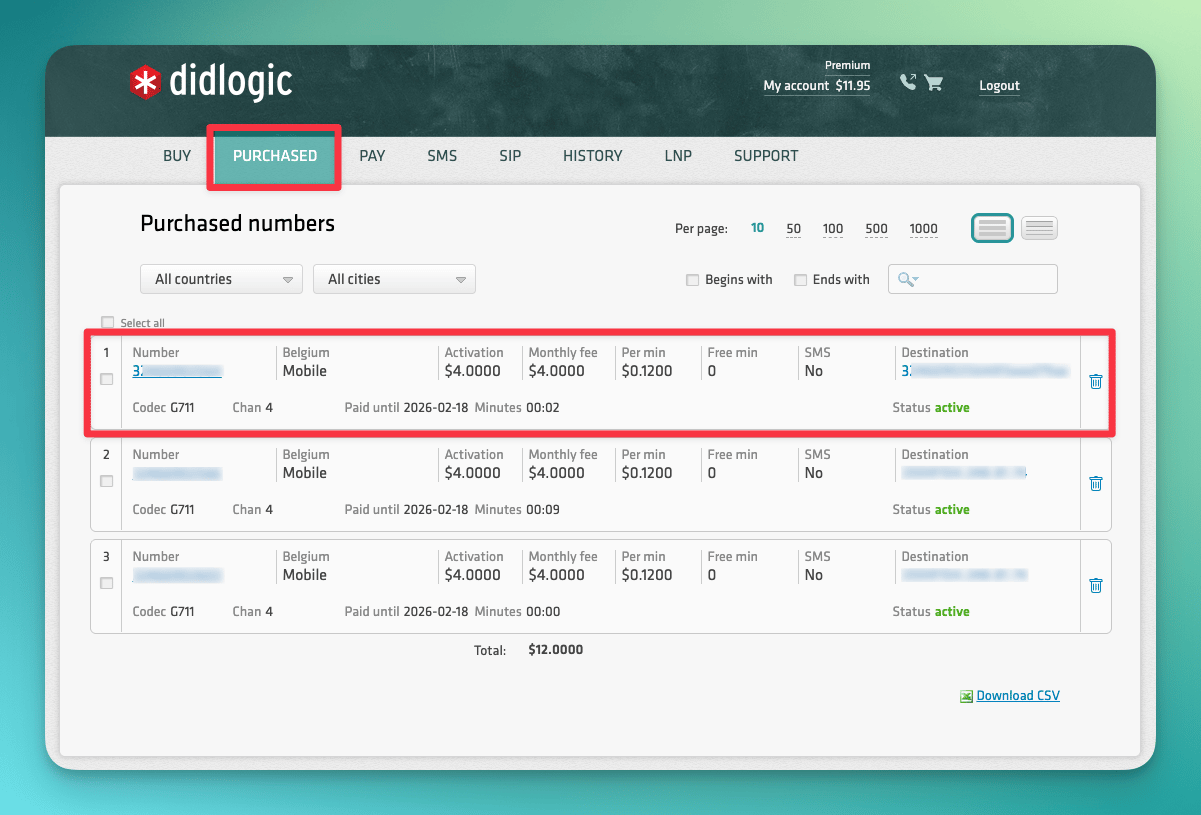
Log in to your DIDLogic dashboard at [app.didlogic.com](https://app.didlogic.com) and go to the **BUY** tab. Search by country and area code, add a number to your cart, and complete checkout. Your new number will appear under the **PURCHASED** tab.
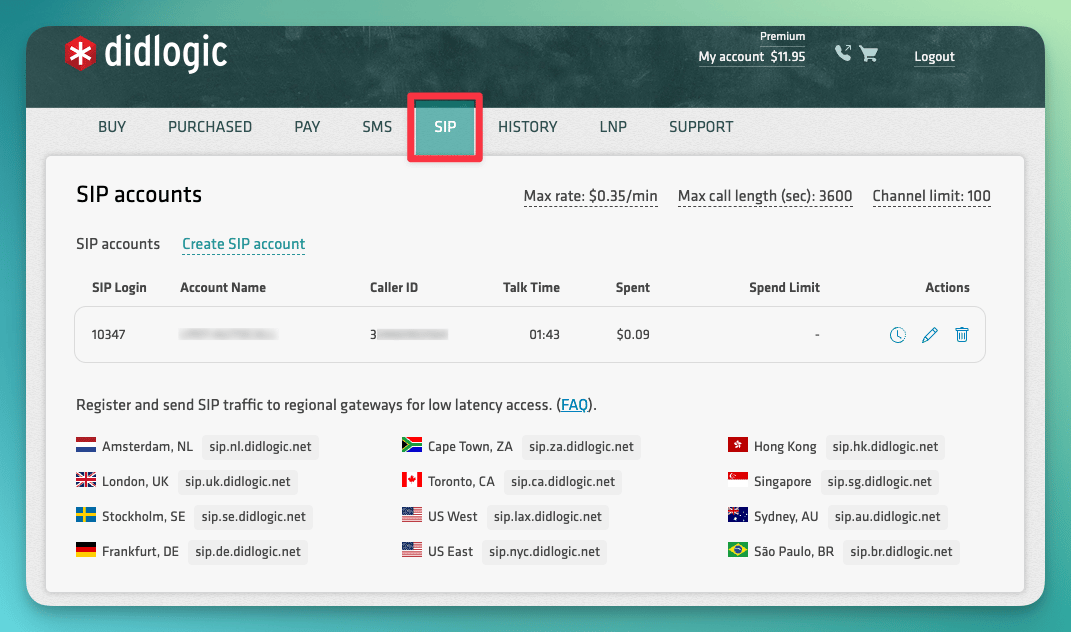
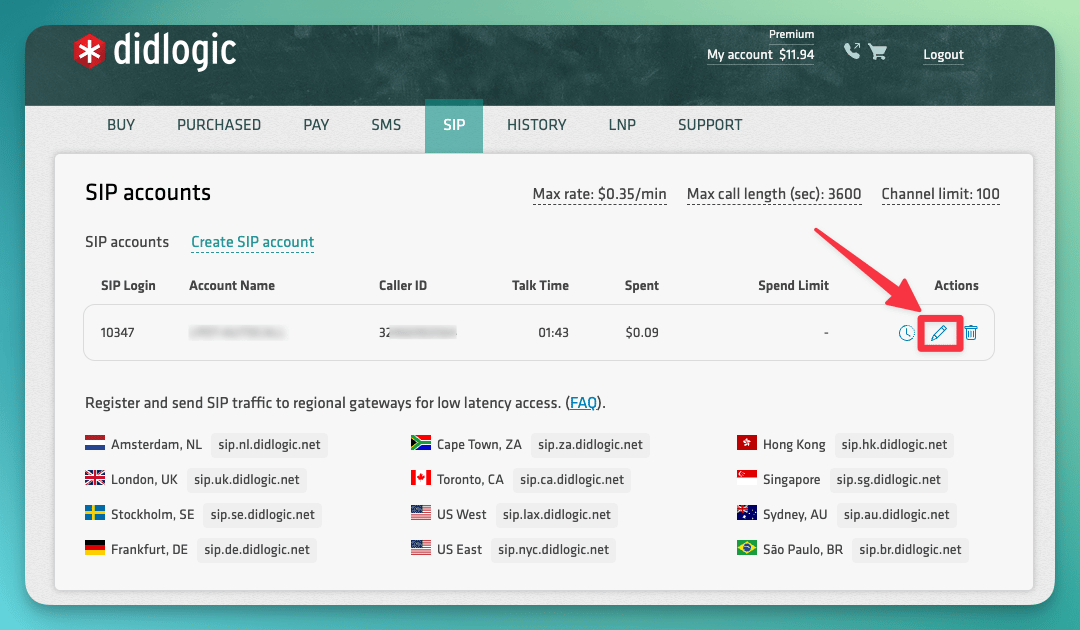
 Go to the **SIP** tab and click **Edit** on your SIP account.
 Note the **SIP account number** (e.g., `12345`) — this is your **username** that you will use in Nicecall. Set a password in both the **Password** and **Confirm Password** fields — you will use this same password when importing the number to Nicecall.
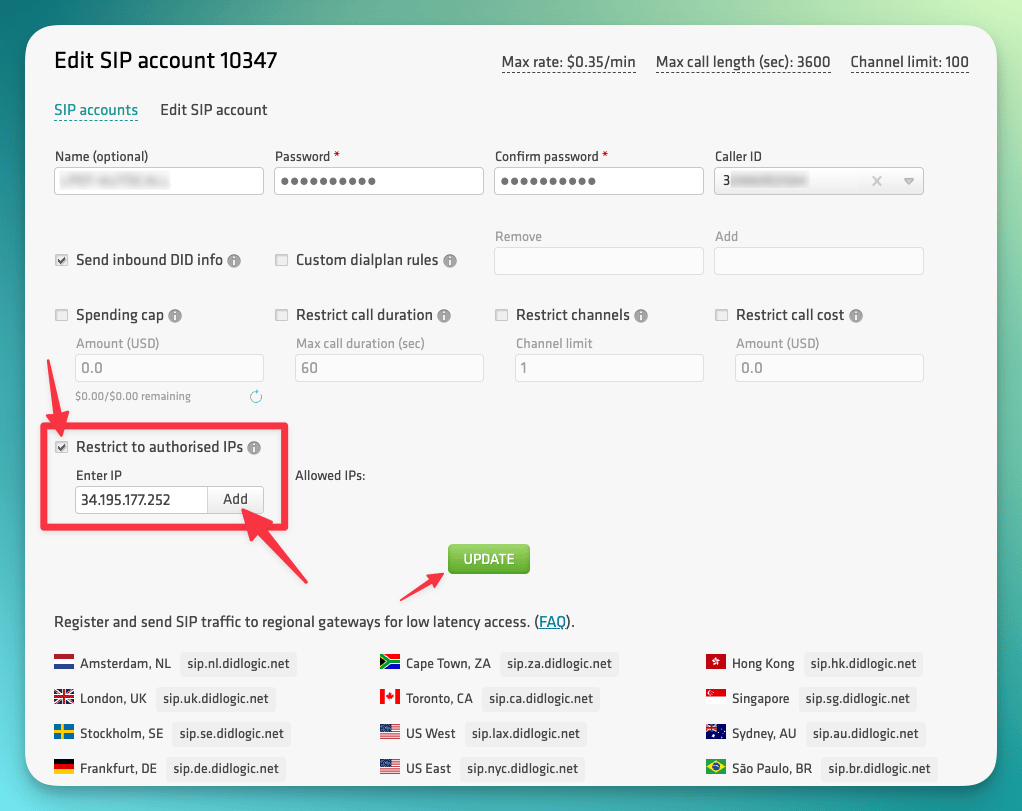
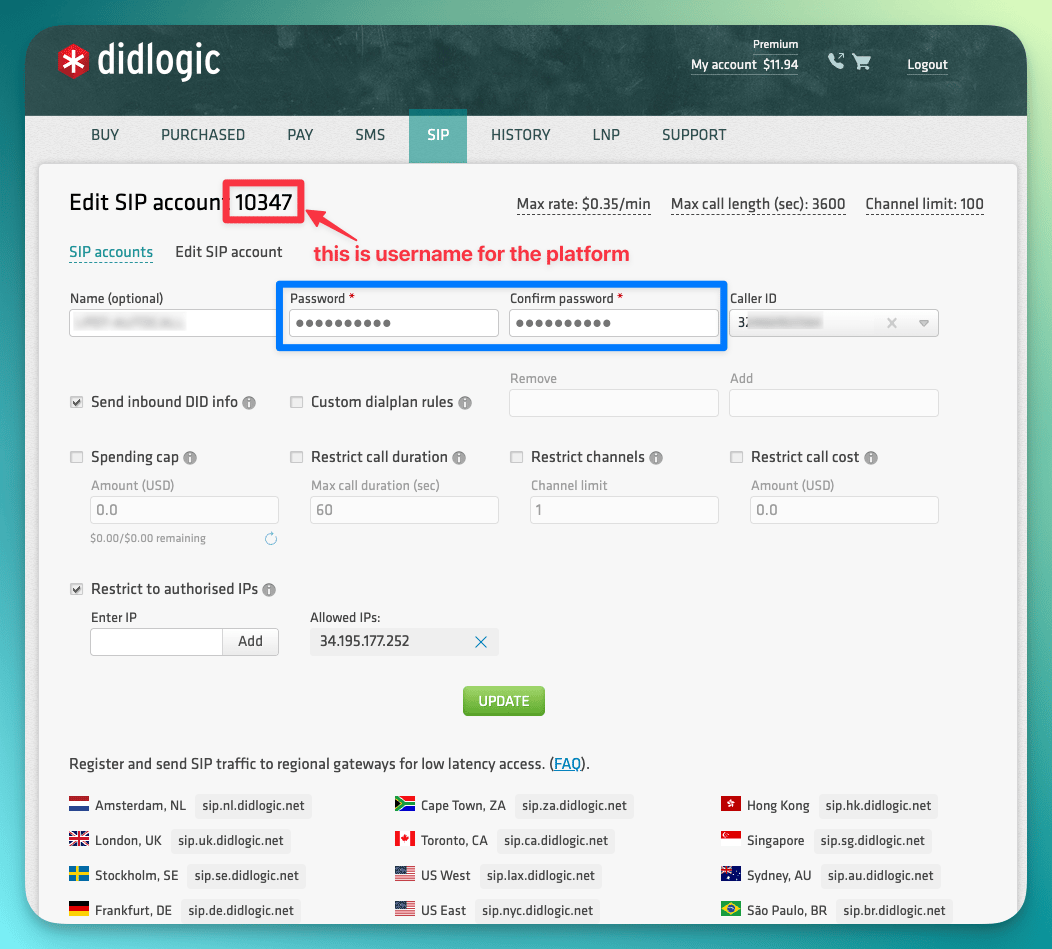 Enable **"Restrict to authorized IPs"** and add the IP address `34.195.177.252`, then click **Add** and **Update**.
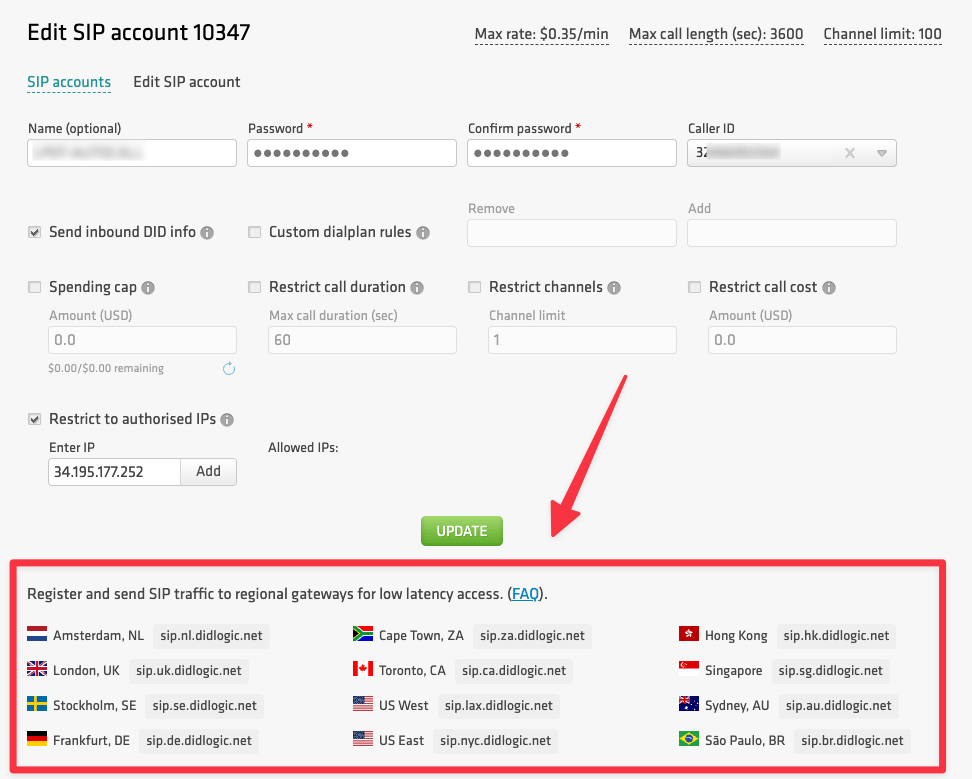
 Scroll down to find your region and copy the **SIP URI** from the regional gateway list. You will need this for the outbound settings in Nicecall.
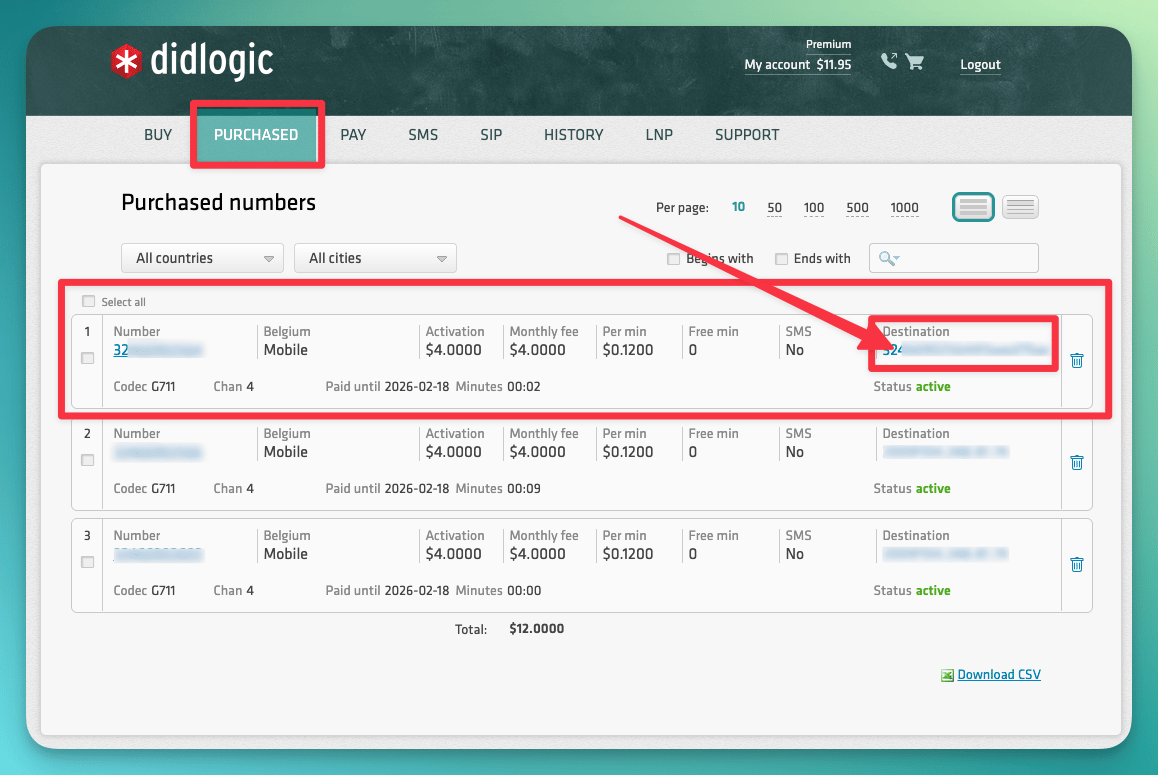
 Go to the **PURCHASED** tab and click **Destination** next to your phone number.
 Delete any existing destination, then change the selector from "SIP device" to **"SIP URI"**.
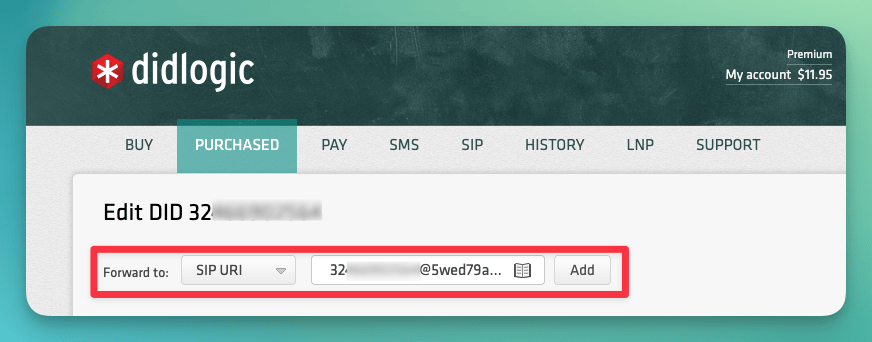 Enter the SIP URI in the following format:
```
@5wed79aeavr.sip.livekit.cloud
```
For example, if your number is `+15551234567`, enter:
```
15551234567@5wed79aeavr.sip.livekit.cloud
```
Click **Add**.
Go to your Nicecall dashboard → **Your Phone Numbers** → **"Integrate SIP trunk"** and fill in your details:
```
Phone number: Your DIDLogic number in E.164 format (e.g., +15551234567)
Username: The SIP account number from Step 2 (e.g., 12345)
Password: The password you set in Step 2
```
Enter the SIP URI in the following format:
```
@5wed79aeavr.sip.livekit.cloud
```
For example, if your number is `+15551234567`, enter:
```
15551234567@5wed79aeavr.sip.livekit.cloud
```
Click **Add**.
Go to your Nicecall dashboard → **Your Phone Numbers** → **"Integrate SIP trunk"** and fill in your details:
```
Phone number: Your DIDLogic number in E.164 format (e.g., +15551234567)
Username: The SIP account number from Step 2 (e.g., 12345)
Password: The password you set in Step 2
```
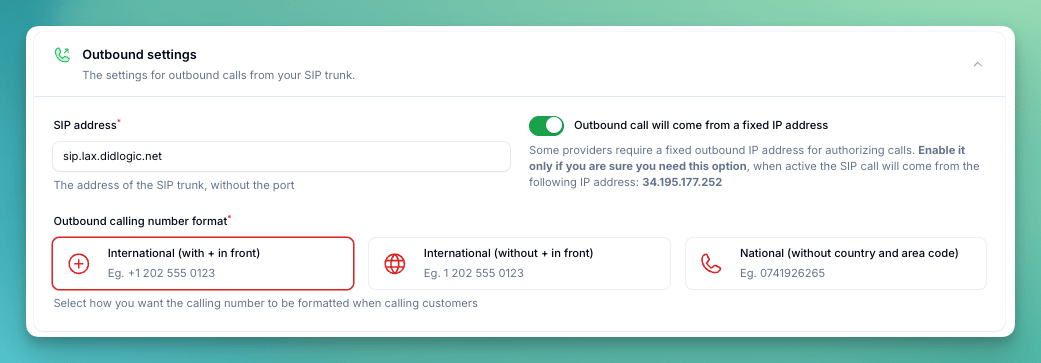
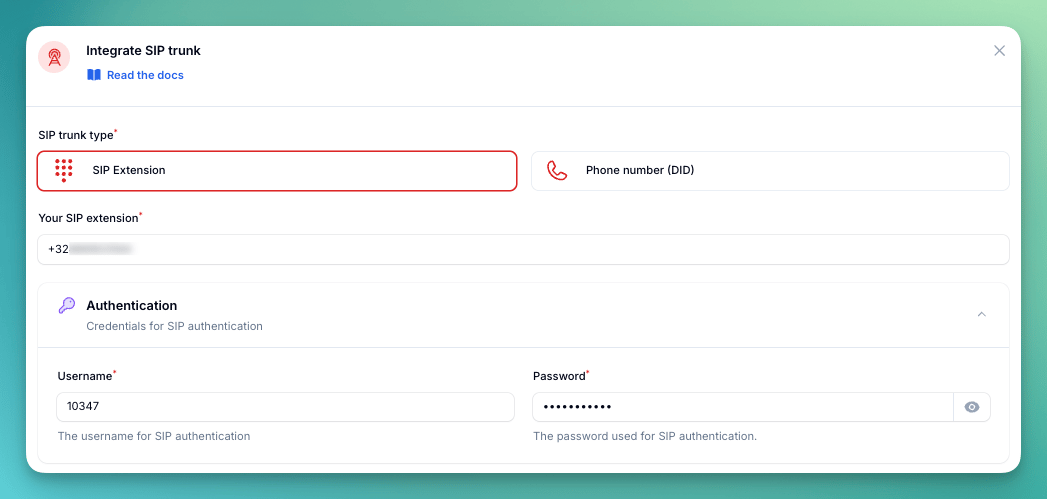 Under **Outbound settings**, paste the regional SIP URI you copied in Step 2. Set **Number format** to **"International with + in front"** and enable **"Outbound call will come from a fixed IP address"**.
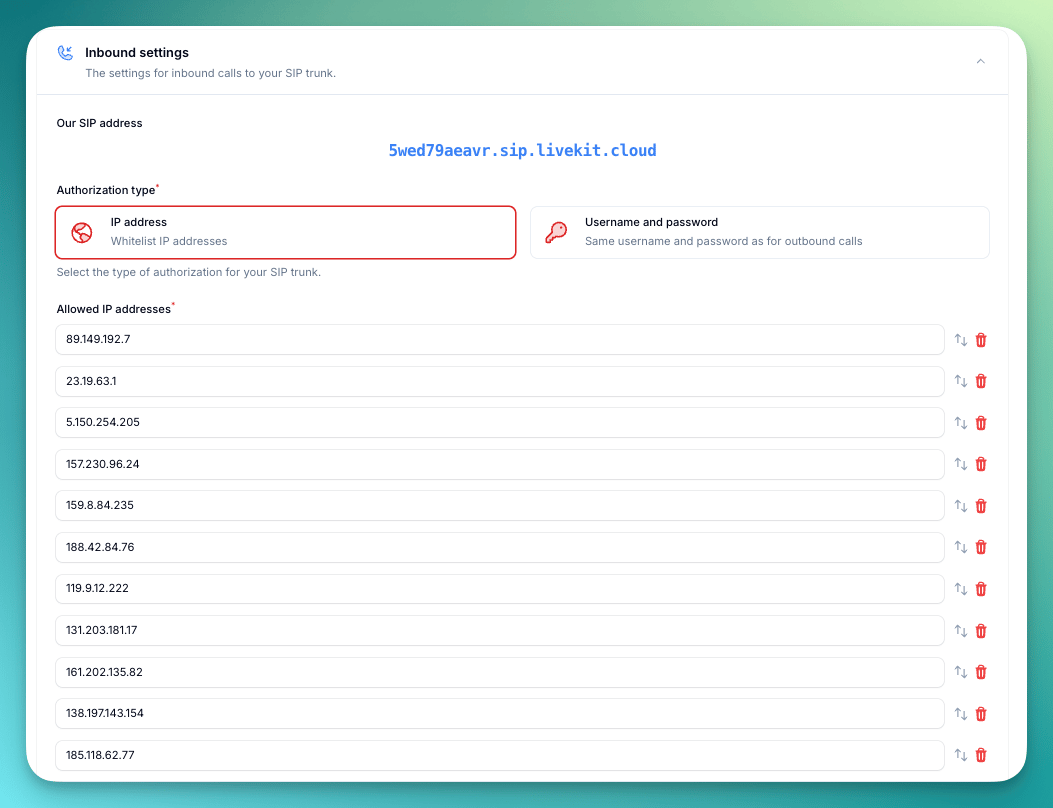
 Under **Inbound settings**, select **"IP Address"** as the authorization type. Add the IP address of your chosen DIDLogic regional gateway from the table below:
| Gateway | IP Address |
| - | - |
| sip.nl.didlogic.net | 89.149.192.7 |
| sip.uk.didlogic.net | 23.19.63.1 |
| sip.se.didlogic.net | 5.150.254.205 |
| sip.de.didlogic.net | 157.230.96.24 |
| sip.fr.didlogic.net | 159.8.84.235 |
| sip.hk.didlogic.net | 188.42.84.76 |
| sip.sg.didlogic.net | 188.42.84.76 |
| sip.au.didlogic.net | 119.9.12.222 |
| sip.nz.didlogic.net | 131.203.181.17 |
| sip.ir.didlogic.net | 161.202.135.82 |
| sip.ca.didlogic.net | 138.197.143.154 |
| sip.lax.didlogic.net | 185.118.62.77 |
| sip.nyc.didlogic.net | 192.241.183.87 |
| sip.za.didlogic.net | 102.130.116.205 |
| sip.br.didlogic.net | 169.57.132.146 |
Under **Inbound settings**, select **"IP Address"** as the authorization type. Add the IP address of your chosen DIDLogic regional gateway from the table below:
| Gateway | IP Address |
| - | - |
| sip.nl.didlogic.net | 89.149.192.7 |
| sip.uk.didlogic.net | 23.19.63.1 |
| sip.se.didlogic.net | 5.150.254.205 |
| sip.de.didlogic.net | 157.230.96.24 |
| sip.fr.didlogic.net | 159.8.84.235 |
| sip.hk.didlogic.net | 188.42.84.76 |
| sip.sg.didlogic.net | 188.42.84.76 |
| sip.au.didlogic.net | 119.9.12.222 |
| sip.nz.didlogic.net | 131.203.181.17 |
| sip.ir.didlogic.net | 161.202.135.82 |
| sip.ca.didlogic.net | 138.197.143.154 |
| sip.lax.didlogic.net | 185.118.62.77 |
| sip.nyc.didlogic.net | 192.241.183.87 |
| sip.za.didlogic.net | 102.130.116.205 |
| sip.br.didlogic.net | 169.57.132.146 |
 Select the **Country** where your SIP trunk is located.
 Make a test call to your number to verify inbound calling, then use the test call feature to verify outbound calling.
## Security Requirements
Your SIP credentials need to be secure. Your password must have at least 12 characters, include numbers, upper and lowercase letters, and special characters are recommended.
## Common Issues
* **Verify the SIP URI** — Make sure you copied the correct regional SIP URI from Step 2. Remove any trailing spaces.
* **Check your username** — The username is the numeric SIP account number (e.g., `12345`), not your email address or account name.
* **Check your password** — Ensure the password in Nicecall matches exactly what you set in the DIDLogic SIP account settings.
* **Verify IP whitelist** — Make sure `34.195.177.252` is added to the authorized IPs in your DIDLogic SIP account.
* **Verify the SIP URI destination** — In DIDLogic, make sure the destination is set to SIP URI (not SIP device) and the format is correct: `@5wed79aeavr.sip.livekit.cloud`
* \**Check the IP whitelist in Nicecall.* — Make sure the IP address you added in the Nicecall inbound settings matches the regional gateway you are using. Refer to the gateway IP table in Step 4.
***
Need help setting up? Our support team specializes in helping customers
integrate their phone systems. We'll guide you through the entire process,
ensuring a smooth setup with your specific phone system configuration.
This documentation is built and hosted on [Mintlify](https://mintlify.com), a developer documentation platform.
Make a test call to your number to verify inbound calling, then use the test call feature to verify outbound calling.
## Security Requirements
Your SIP credentials need to be secure. Your password must have at least 12 characters, include numbers, upper and lowercase letters, and special characters are recommended.
## Common Issues
* **Verify the SIP URI** — Make sure you copied the correct regional SIP URI from Step 2. Remove any trailing spaces.
* **Check your username** — The username is the numeric SIP account number (e.g., `12345`), not your email address or account name.
* **Check your password** — Ensure the password in Nicecall matches exactly what you set in the DIDLogic SIP account settings.
* **Verify IP whitelist** — Make sure `34.195.177.252` is added to the authorized IPs in your DIDLogic SIP account.
* **Verify the SIP URI destination** — In DIDLogic, make sure the destination is set to SIP URI (not SIP device) and the format is correct: `@5wed79aeavr.sip.livekit.cloud`
* \**Check the IP whitelist in Nicecall.* — Make sure the IP address you added in the Nicecall inbound settings matches the regional gateway you are using. Refer to the gateway IP table in Step 4.
***
Need help setting up? Our support team specializes in helping customers
integrate their phone systems. We'll guide you through the entire process,
ensuring a smooth setup with your specific phone system configuration.
This documentation is built and hosted on [Mintlify](https://mintlify.com), a developer documentation platform.