> ## Documentation Index
> Fetch the complete documentation index at: https://docs.nicecall.ai/llms.txt
> Use this file to discover all available pages before exploring further.
# Cal.com Appointment Scheduling
> Enable your AI assistant to schedule appointments using Cal.com
Enable your AI assistant to schedule meetings using Cal.com integration. The system automatically configures booking fields for you.
## Setup
### 1. Get API Key
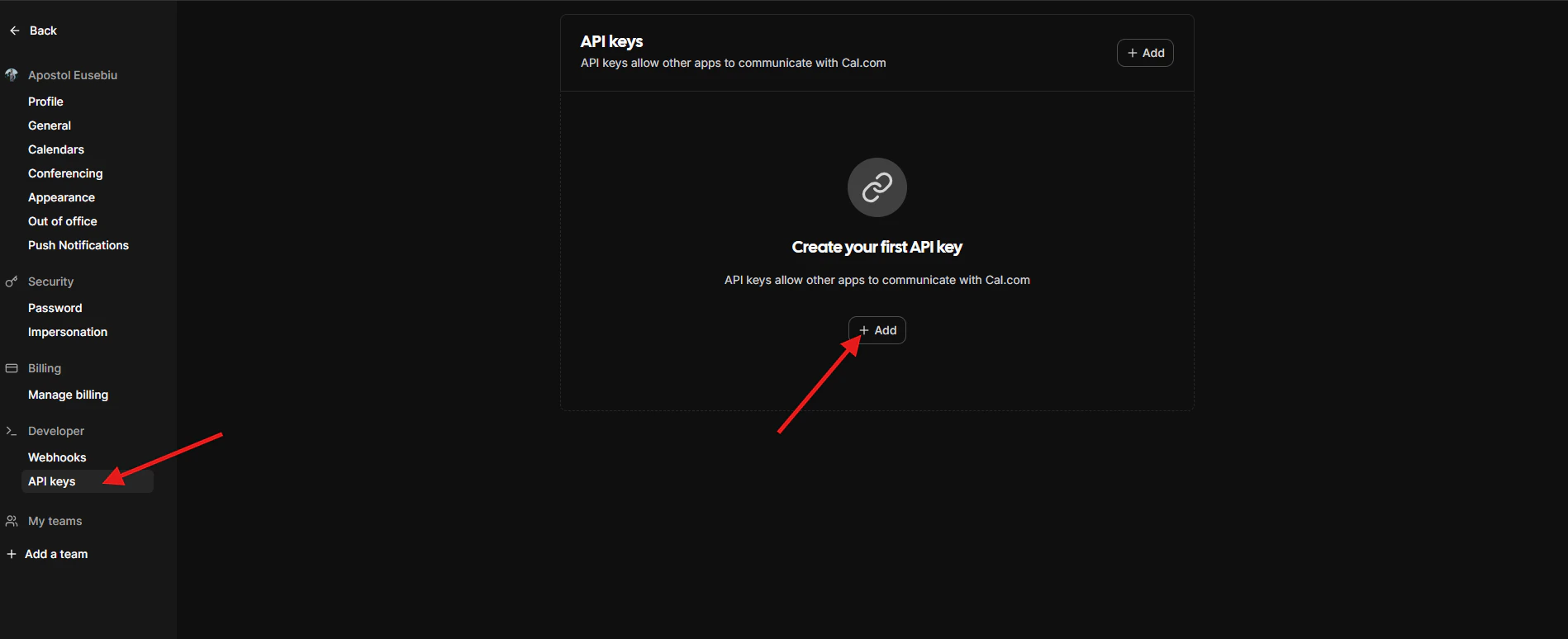
1. Log in to [Cal.com](https://cal.com/)
2. Go to **Settings** → **Developer** → **API Keys**
3. Create a new API key and copy it
 ### 2. Connect Cal.com
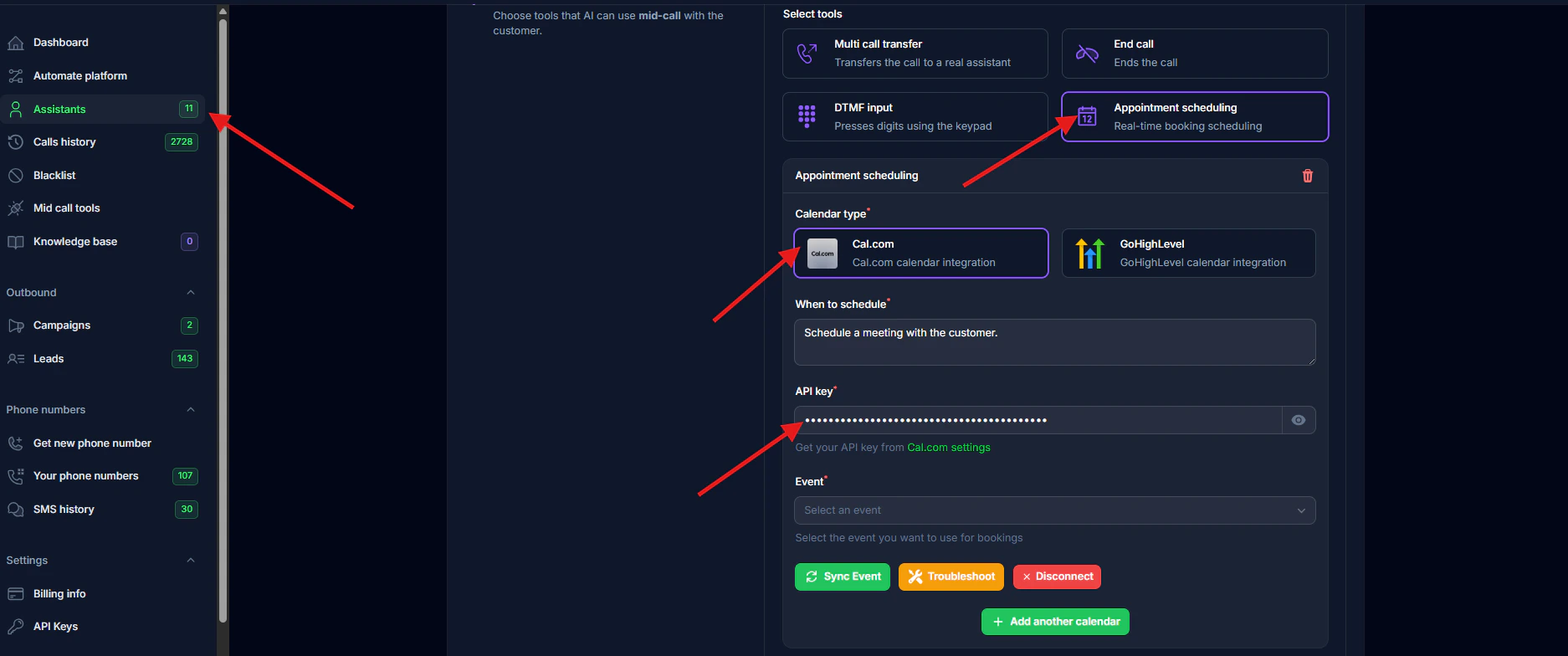
1. In your assistant settings → **Tools** tab → **Appointment Scheduling**
2. Select **Cal.com** from calendar type
3. Paste your API key
4. Select an event from the dropdown
### 2. Connect Cal.com
1. In your assistant settings → **Tools** tab → **Appointment Scheduling**
2. Select **Cal.com** from calendar type
3. Paste your API key
4. Select an event from the dropdown
 ### 3. Sync Event
Click the **"Sync Event"** button to automatically configure booking fields.
### 3. Sync Event
Click the **"Sync Event"** button to automatically configure booking fields.
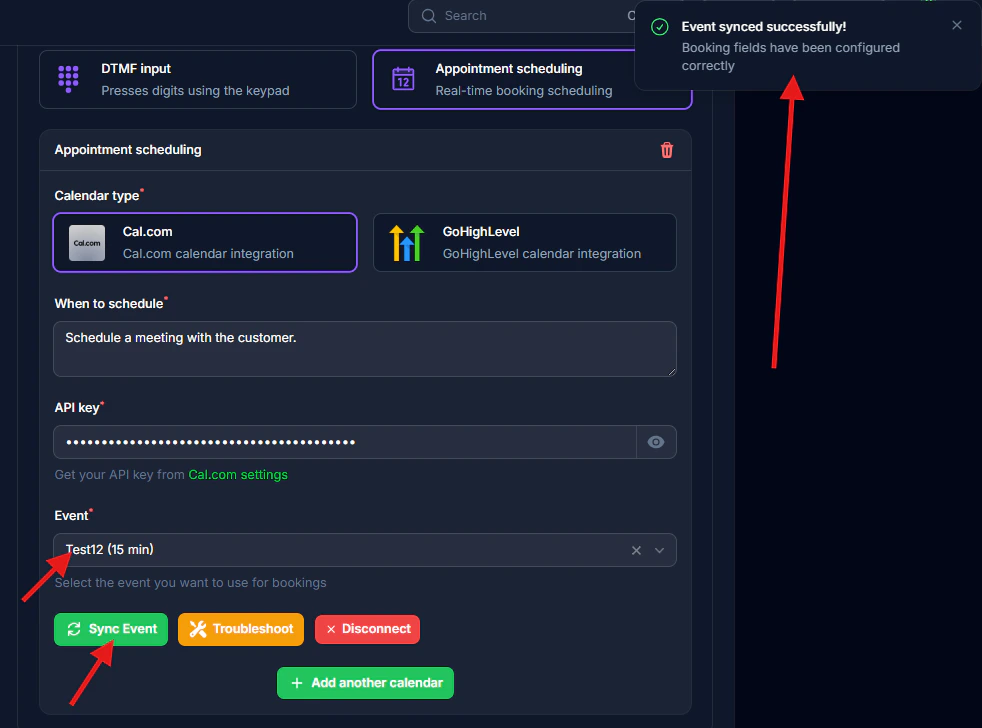 The sync configures: name, email, phone (required) + notes (optional). All other fields become optional.
## Multiple Calendars
Click **"+"** next to Appointment Scheduling to add more calendars (e.g., 15min, 30min meetings).
## Email Setup
For calendar invites to work:
1. Define `email` in assistant [input variables](/ai-assistants/settings/prompt-and-tools#call-variables)
2. Pass customer email when creating leads
The phone number is automatically included after sync.
## Troubleshooting
**Invalid API Key:** Verify it's active in Cal.com settings and includes `cal_live_` prefix
**Sync Failed:** Click **"Troubleshoot"** button to reset fields
**No Invites Sent:** Ensure `email` variable is defined and passed with leads
**Field Errors:** Use "Troubleshoot" to reset. Only name, email, phone should be required.
For detailed troubleshooting, see [Cal.com Issues](/troubleshooting/cal-com).
## Testing
1. Make a test call and request a meeting
2. Verify booking appears in Cal.com
3. Check calendar invitation email was received
The sync configures: name, email, phone (required) + notes (optional). All other fields become optional.
## Multiple Calendars
Click **"+"** next to Appointment Scheduling to add more calendars (e.g., 15min, 30min meetings).
## Email Setup
For calendar invites to work:
1. Define `email` in assistant [input variables](/ai-assistants/settings/prompt-and-tools#call-variables)
2. Pass customer email when creating leads
The phone number is automatically included after sync.
## Troubleshooting
**Invalid API Key:** Verify it's active in Cal.com settings and includes `cal_live_` prefix
**Sync Failed:** Click **"Troubleshoot"** button to reset fields
**No Invites Sent:** Ensure `email` variable is defined and passed with leads
**Field Errors:** Use "Troubleshoot" to reset. Only name, email, phone should be required.
For detailed troubleshooting, see [Cal.com Issues](/troubleshooting/cal-com).
## Testing
1. Make a test call and request a meeting
2. Verify booking appears in Cal.com
3. Check calendar invitation email was received